Overview
If you purchased Premium or a Lifetime upgrade for SMS Backup, Print & Restore and can’t access it after reinstalling the app or moving to a new device, this guide will help you restore your purchase.
How purchases work in this app
SMS Backup, Print & Restore does not use a separate in-app login system. Your Premium/Lifetime entitlement is tied to the Google Account that was used to make the purchase on Google Play.
- You can use the purchase on multiple Android devices as long as they use the same Google Account.
- If you’re signed into a different Google Account on your current device, the app may appear as if Premium/Lifetime is missing.
How to tell whether Premium is active
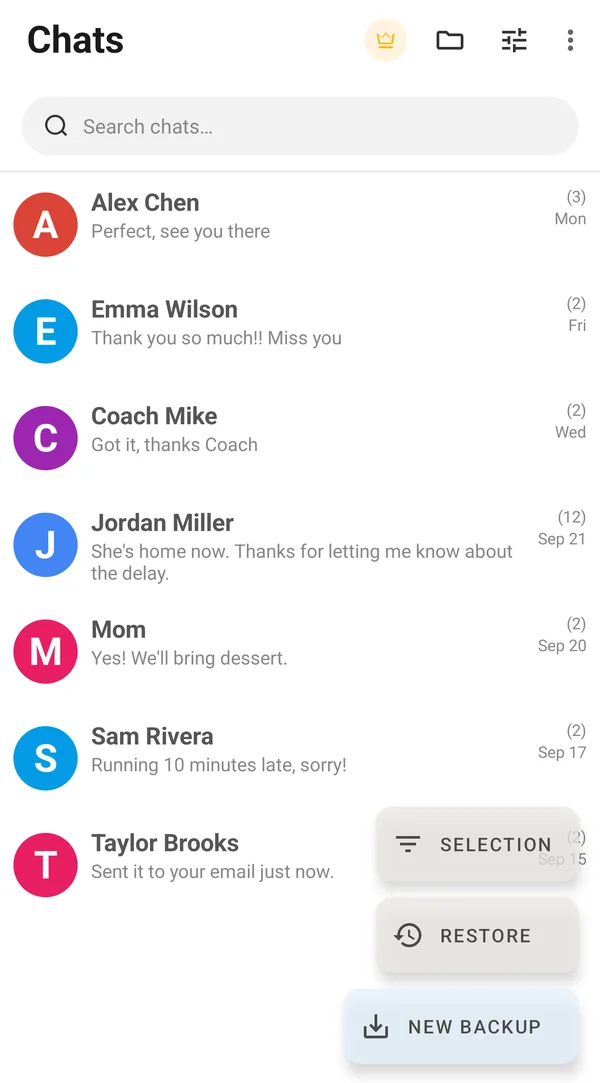
Look at the top of the app’s Chats screen. In the free version there is a yellow crown icon there. When Premium is active, the crown disappears (and so do the ads).
Step-by-step: Restore your purchase
Step 1: Verify which Google Account made the purchase
-
Search your email (in Gmail or any email app) for your Google Play receipt. Try searching for:
- “Order Receipt gilapps”
- “Google Play receipt”
- “SMS Backup, Print & Restore”
The email account that received the receipt is usually the Google Account used for the purchase.
-
Check your Google Play purchase history (open these links in a browser where you’re signed into Google):
- Order history: https://play.google.com/store/account/orderhistory
- Subscriptions (if applicable): https://play.google.com/store/account/subscriptions
Step 2: Confirm the order status in Google Play
Once you find the purchase in your Google Play order history, open it and review the details.
- If the order is completed, continue to Step 3.
- If the order is pending or not processed, the upgrade may not be available yet. Wait a while and refresh your order history. If the order never completes, or it was canceled or refunded, you may need to purchase again with the correct Google Account.
Step 3: Do a clean reinstall with the correct Google Account
If your order is valid but the app still shows the crown, follow these steps carefully.
- Uninstall SMS Backup, Print & Restore. This does not delete your text messages, which are stored by your phone’s messaging system.
-
Clear Google Play Store data:
- Open Settings on your Android device.
- Go to Apps and open Google Play Store.
- Tap Storage (or Storage & cache).
- Tap Clear data (and Clear cache if available).
-
Open the Google Play Store and switch to the same Google Account used for the purchase:
- Tap your profile icon in the Play Store (top right).
- Select the correct account (or add it if it’s not listed).
- Install SMS Backup, Print & Restore again from the Play Store.
Step 4: If Premium still doesn’t appear
- Check again that the same Google Account is active in Google Play.
- Restart your phone and open the app again.
- If it still shows the crown, contact us: on the Chats screen tap the three-dot menu (⋮), then Help & Support, then Chat. Include your Google Play order number (it starts with GPA.) and we’ll restore your purchase.
Helpful tips
- Multiple Google accounts: If your device has more than one Google Account, it’s easy to install the app under the “wrong” account. Always check the Play Store account before installing.
- Keep receipts: Your Google Play receipt email is the fastest way to confirm the purchase account and order details.